Getting started
Requirements
- The .NET 10 SDK to build from source.
- A desktop session for the Avalonia application. The CLI has no GUI dependency.
- Windows or Linux are the tested targets. macOS arm64 is built by the workflow; macOS is not part of the test matrix.
The code targets net10.0; global.json accepts the latest .NET 10 feature band and refuses prereleases.
Run from a clone
git clone https://github.com/manuc66/DuplicateFileAssistant.git
cd DuplicateFileAssistant
dotnet restore
dotnet run --project DuplicateAssistant
The first tab asks for a folder (it starts at ~/Documents), a hash algorithm and whether to recurse into subfolders. Press Search. The groups appear below as soon as they are found; Stop cancels a scan in progress.
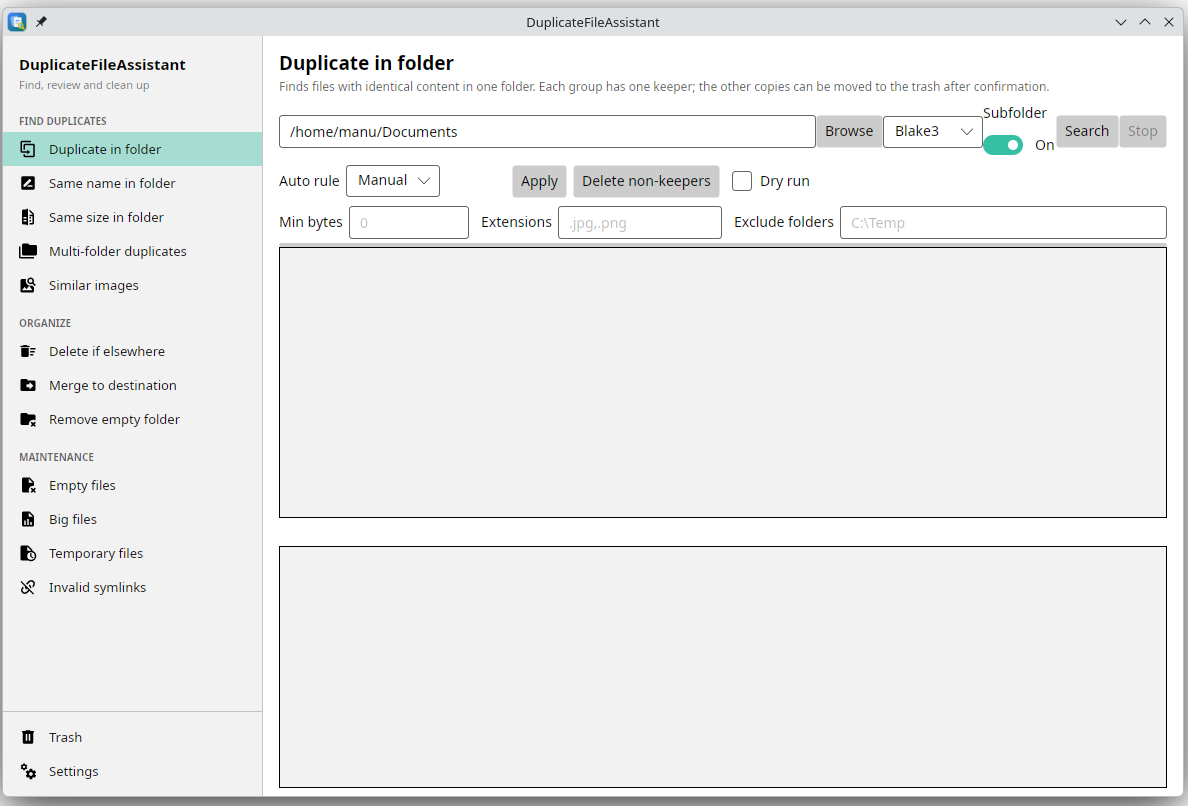
The rest of the window is described on Desktop app.
Build a self-contained archive
The workflow uses these commands, one per runtime identifier:
dotnet publish DuplicateAssistant/DuplicateAssistant.csproj \
  -c Release -r linux-x64 --self-contained true -o publish/linux-x64
win-x64 and osx-arm64 work the same way. The result contains the .NET runtime, so the target machine does not need a separate installation. There is no installer: unzip the folder and run DuplicateAssistant (DuplicateAssistant.exe on Windows).
The .NET workflow attaches these archives to the run as artifacts. A GitHub sign-in is required to download one. A tagged release with the same archives is not published yet.
Build and test
The solution contains the desktop app, the CLI, the comparison libraries and the tests:
dotnet build
dotnet test
dotnet format FindDuplicate.sln --verify-no-changes --no-restore
CI runs the tests on Ubuntu, Windows and macOS, verifies formatting on Ubuntu, and publishes the three archives only for pushes to main after the tests pass. See Development for the project layout.
First choices
| Choice | Default | Notes |
|---|---|---|
| Hash in the desktop app | Blake3 | MD5 and XXHash are also offered. Blake3 is the default for its speed. |
Hash in the CLI (duplicates) | SHA-256 | --algorithm md5 is the only alternative. |
| Recursion | On | The Subfolder switch controls it in every desktop tab. |
| Trash | Application folder, ~/DuplicateTrash | The desktop app’s Settings tab switches to the system trash or another folder. The CLI always uses an application folder; change it with --trash. |
| Similar-image distance | 8 of 64 bits | --threshold on the CLI; see Similar images. |
| Keeper rule | Manual | The multi-folder tab can keep the oldest, newest, shortest or longest path. |
appsettings.json is copied next to the executable on build; it also holds the initial searchPath and the default trashMode / trashFolder. The Settings tab saves the trash choice in the user profile, which takes precedence over these defaults.
A safe first run
- Start with a copy of a folder you know, not with the only copy of anything.
- Leave Dry run checked in Delete if elsewhere and Merge to destination until the plan looks right.
- Delete one group at a time, then check the Trash tab: Restore puts a file back at its original path.
- Only then use the bulk commands. Read Safety and trash before the first real deletion.