Desktop app
DuplicateAssistant is the Avalonia front end. It has fourteen tabs, each a self-contained scan over one folder (or several, for the multi-folder tab). Most tabs show a path and a Search / Stop pair; the content-based tabs add a Subfolder switch. Long scans report progress in the log below the list and can be stopped at any point. The last folder used by a scan is remembered and restored on the next launch.
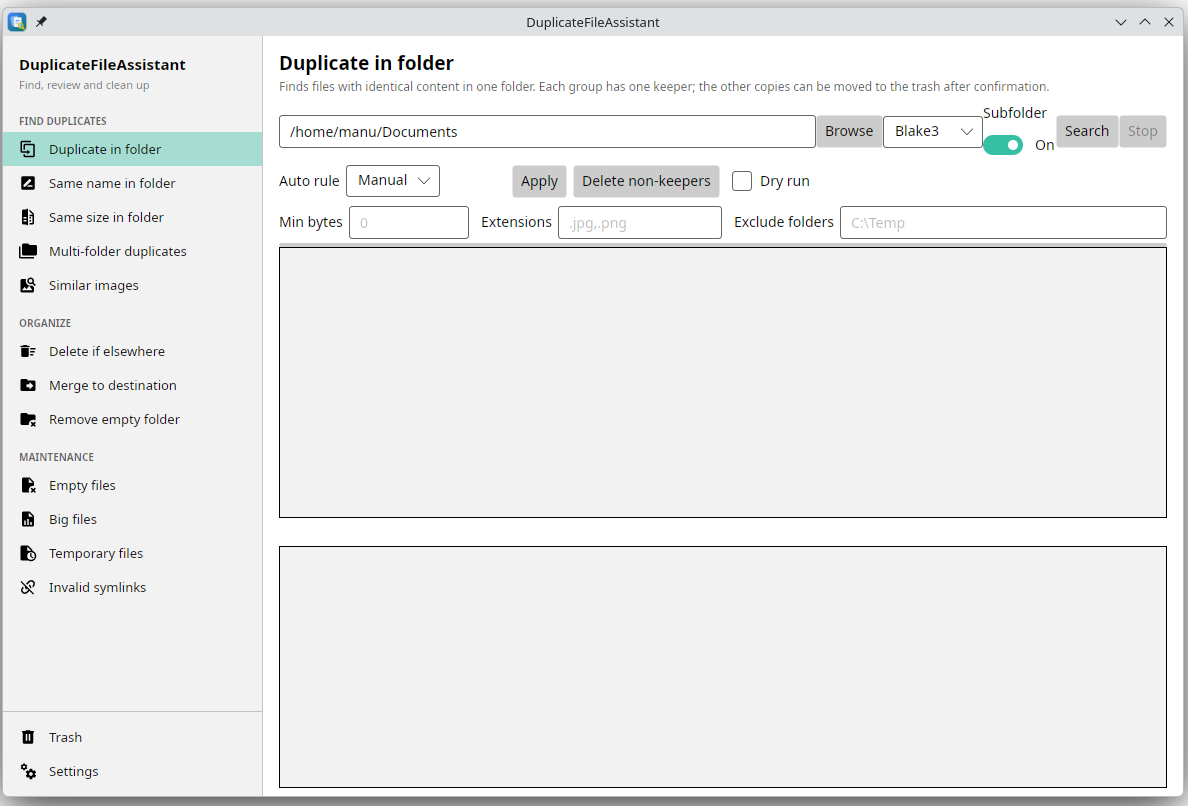
The fourteen tabs
| Tab | What it finds |
|---|---|
| Duplicate in folder | Files with identical content, then verifies each candidate group byte-for-byte before offering a deletion. |
| Same name in folder | Files that share a name, wherever they are below the root. Useful for photo libraries and scanned documents. |
| Same size in folder | Files of equal length. Fast and approximate: a starting point, not a duplicate proof. |
| Multi-folder duplicates | The same content-based search over an explicit list of folders, with an auto-keeper rule. |
| Similar images | The same picture resized, recompressed, cropped or edited; suggests a keeper by quality. |
| Delete if elsewhere | Files in a source folder that already exist, by content, under another folder. |
| Merge to destination | Moves a source tree into a destination without overwriting conflicts. |
| Remove empty folder | Directories left with no files. |
| Empty files | Zero-byte files. |
| Big files | The largest files below the root; the maximum count is configurable. |
| Temporary files | Files with temporary or backup extensions and names. |
| Invalid symlinks | Symbolic links whose target no longer resolves. |
| Trash | Everything deleted through the app, with Restore, Discard and Refresh. |
| Settings | Chooses between the application trash folder and the system trash, changes the trash folder, and chooses the model folder. |
The Similar images tab uses the same finder as the CLI and is described in Similar images.
Duplicate groups
Each group is a keeper plus its duplicates. Duplicate tabs filter by minimum size, extension and excluded folders. Extensions opens a multi-select list with common types; leaving every box unchecked means all files. The last folder used by a scan is restored on the next launch. Every row offers:
- Keep: make this file the keeper. Exactly one file per group is the keeper.
- Reveal in folder and Open: check the file before deciding. This is the habit the tool is designed around; it never hides what it is about to delete.
- Hardlink: replace a duplicate with a hard link to the keeper. The bytes exist once on disk and both paths remain usable. This only works on a filesystem that supports hard links and only within one filesystem.
- Delete: move this file to the trash. Deleting the keeper automatically promotes another copy, so a group always keeps at least one file; switch the keeper first if you want a specific survivor.
- Restore: appears after a deletion, and puts the file back at its original path.
Deletion asks for confirmation and moves the file to the trash; the file is not unlinked. If the move fails (permissions, a busy file), the row shows the error and nothing is recorded as deleted.
The hash selector offers Blake3 (the default), MD5 and XXHash. The scan cache makes a second run over an unchanged folder much faster; see Caches.
Multi-folder duplicates
Add the folders to compare with Add folder, then choose a hash and search. This is the tab for “I have copies in Pictures, Backup and Downloads”.
An auto rule picks the keeper: keep the oldest, newest, shortest path or longest path. Apply marks the keepers, and Delete non-keepers moves the rest to the trash. Leave Dry run checked to see what would move without touching anything. The rule is a convenience, not a substitute for looking at the results; a shorter path is not automatically the better copy.
The same tab filters by minimum size, extension list and excluded folders.
Similar images
This tab compares pictures rather than bytes. The default pass uses a 64-bit difference hash and finds resized or recompressed copies. Two optional passes refine it:
- Detect crops and edits (DINOv2) computes a small embedding for every picture and catches the same scene cropped or retouched. The model (~85 MB) is downloaded on first use and cached; leave Allow model download unchecked to stay offline.
- Suggest a keeper by quality scores the pictures in each group. The default scorer is model-free (sharpness and resolution); Use DBCNN quality model (~60 MB) uses a trained no-reference quality model instead. The keeper is chosen among copies within 5% of the largest resolution, so a thumbnail never wins over the original.
The threshold field tunes the semantic pass (0.80 by default); a higher value is stricter. Dry run is checked by default. Review the group, then Delete non-keepers moves the other copies to the trash after confirmation. Selecting a file shows it side by side with the keeper, so a crop or edit can be checked before acting. The Zoom button opens a full-screen viewer with zoom in/out, actual size and F11. Drag to pan when zoomed. The viewer can blend the two pictures with an Overlay slider and show a normalized Difference heatmap; the heatmap is approximate for crops because the images are not geometrically aligned. Hard links are disabled for image groups because a perceptual match is not guaranteed to be byte-identical.
Delete if elsewhere and Merge to destination
Delete if elsewhere compares a source tree with a second tree by hash and offers to trash the source files that already exist on the other side. Merge to destination moves files into a destination tree; a name conflict is never overwritten, and conflicting files are left untouched and reported.
Both have a Dry run checkbox. Use it. The plan is shown before the action, and the operation only starts when Move to trash or Merge is pressed.
Empty files, big files, temporary files, invalid symlinks
These four are list-and-delete tools rather than duplicate finders. Big files and Temporary files have Min size and Max size fields (for example 10 MB or 1.5 GB, blank means no bound). Big files also has a Max files field and the multi-select Extensions filter. All four have a Dry run mode and Delete selected / Delete all buttons. Invalid symlinks only deletes the link, never the target.
Trash
The Trash tab lists the manifest. Restore returns an entry to its original path and fails if a file now occupies that path. Discard permanently deletes an entry after confirmation, which is also how to clear an entry that was already restored or removed from the system trash outside the app. It shows the current location above the list. In application mode the folder defaults to ~/DuplicateTrash; in system mode the files are in the Windows Recycle Bin, the freedesktop trash or the macOS Trash. Both modes are tracked by the app, so Restore works for files it deleted in either mode.
The trash is a safety net against manipulation errors, not a backup. See Safety and trash for the manifest format, the audit log and the volume rules.
Settings
The Settings tab chooses where deleted files go:
- Application trash folder: the app owns the folder, the manifest and the audit log. Browse… changes the folder. Files already in the previous folder stay there; the app does not move them.
- System trash: files go to the operating system’s recycle bin or Trash, and the app keeps its own manifest so they still appear in the Trash tab. The application folder is not used in this mode.
The choice is saved in the user profile, so it survives a restart. The defaults come from DuplicateAssistant/appsettings.json (trashMode and trashFolder) on the first run.
The same tab also chooses the models folder. It defaults to LocalApplicationData/DuplicateFileAssistant/models; Browse… points it at another disk or a pre-provisioned folder. The model directory is stored in model-settings.json next to the application settings.